跳至内容
0%

How to view your NFT in your mobile wallet

Author: Alchemy Team

Last updated: August 30, 20212 min read

This tutorial describes how to view an existing an NFT on your Mobile Metamask wallet.

Estimated time to complete this guide: ~3 minutes

Plus, be sure to check out the rest of our NFT tutorial series:

Congrats! You've made it to the shortest and simplest part of our NFT tutorial series:  how to view your freshly minted NFT in your virtual wallet. We'll be using Metamask for this example since it is what we used in the previous two parts.

As a prerequisite, you should already have Metamask on mobile installed, and it should include the account to which you minted your NFT — you can get the app for free on iOS, or Android .

Step 1: set your network to Ropsten

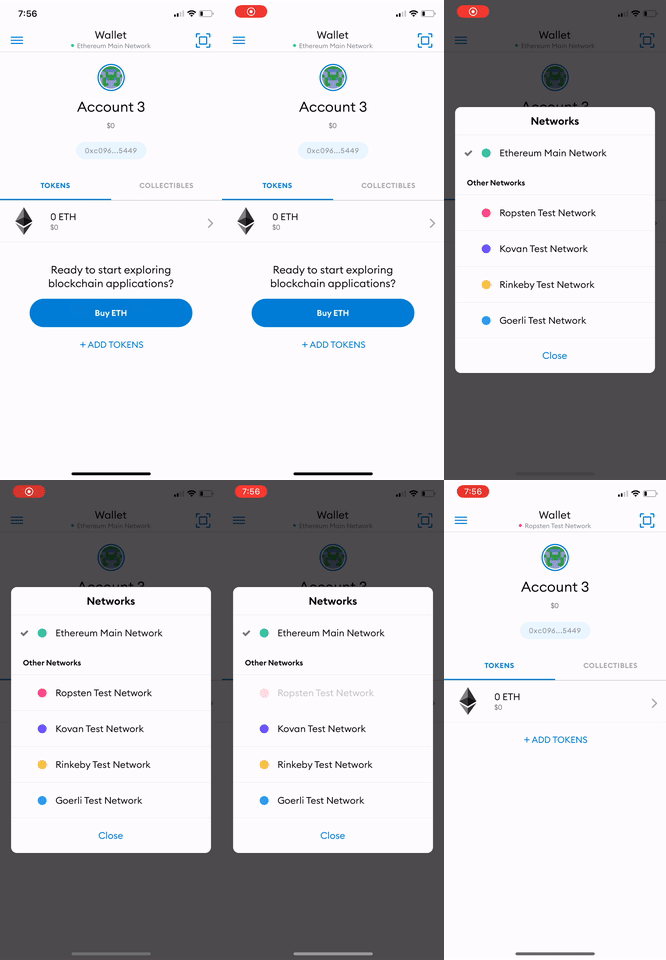
At the top of the app, press the "Wallet" button, after which you'll be prompted to select a network. As our NFT was minted on the Ropsten network, you'll want to select Ropsten as your network.

MetaMask mobile: switching the network to Ropsten
Set your network to Ropsten

Step 2: add your collectable to MetaMask

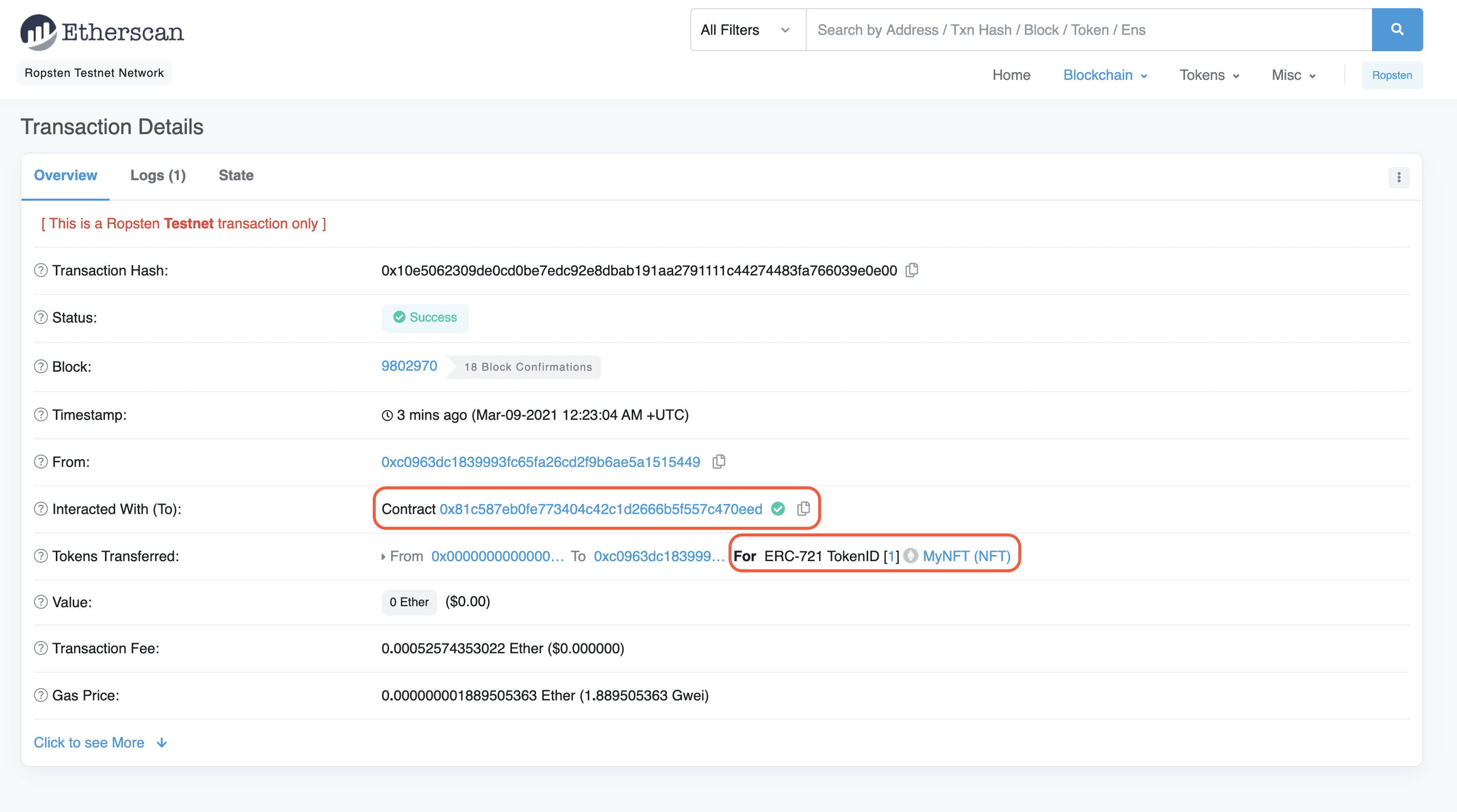
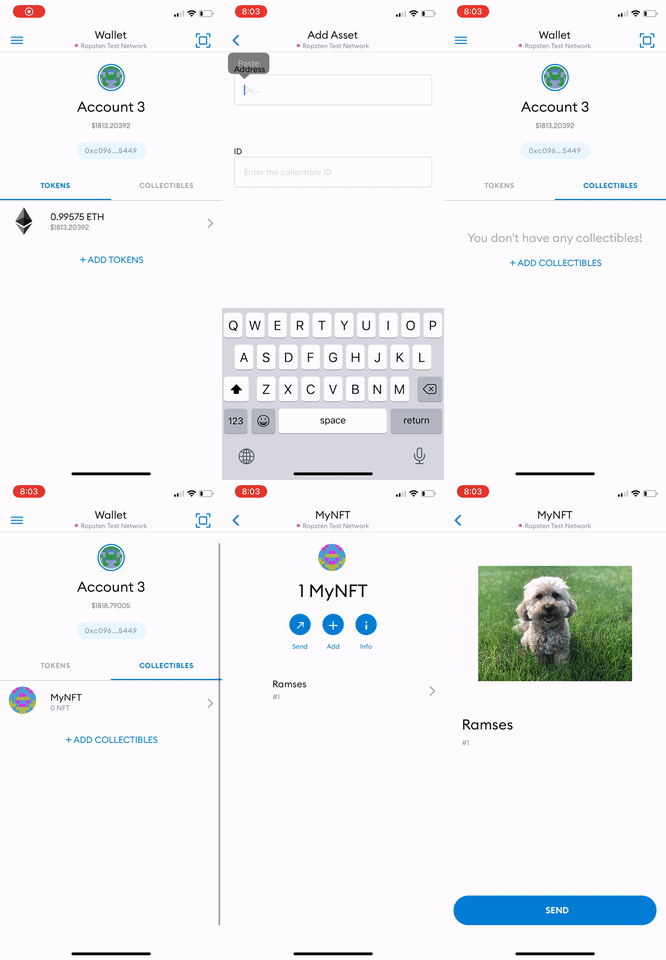
Once you're on the Ropsten network, select the "Collectibles" tab on the right and add the NFT smart contract address and the ID of your NFT— which you should be able to find on Etherscan based on the transaction hash from your NFT minted in Part II of our tutorial.

Etherscan: transaction hash and contract details of the minted NFT
Transaction hash of minted a NFT

You may need to refresh a couple times to view your NFT —but it will be there! 😄

MetaMask mobile: minted NFT displayed in the Collectibles tab
View your NFT in your wallet

Congrats! You can now view your NFT in your wallet! We can't wait to see how you'll take the NFT world by storm! 🎨🪄🧙🤑🎊

Alchemy Newsletter

Be the first to know about releases

订阅我们的新闻通讯

获取 Alchemy 的最新产品更新和资源

A
O
D
+
超过 80,000 名订阅者

填写您的电子邮箱地址即表示您同意接收我们的营销通讯和产品更新。您确认 Alchemy 按照我们的隐私声明处理我们收到的信息。您可以随时取消订阅。